
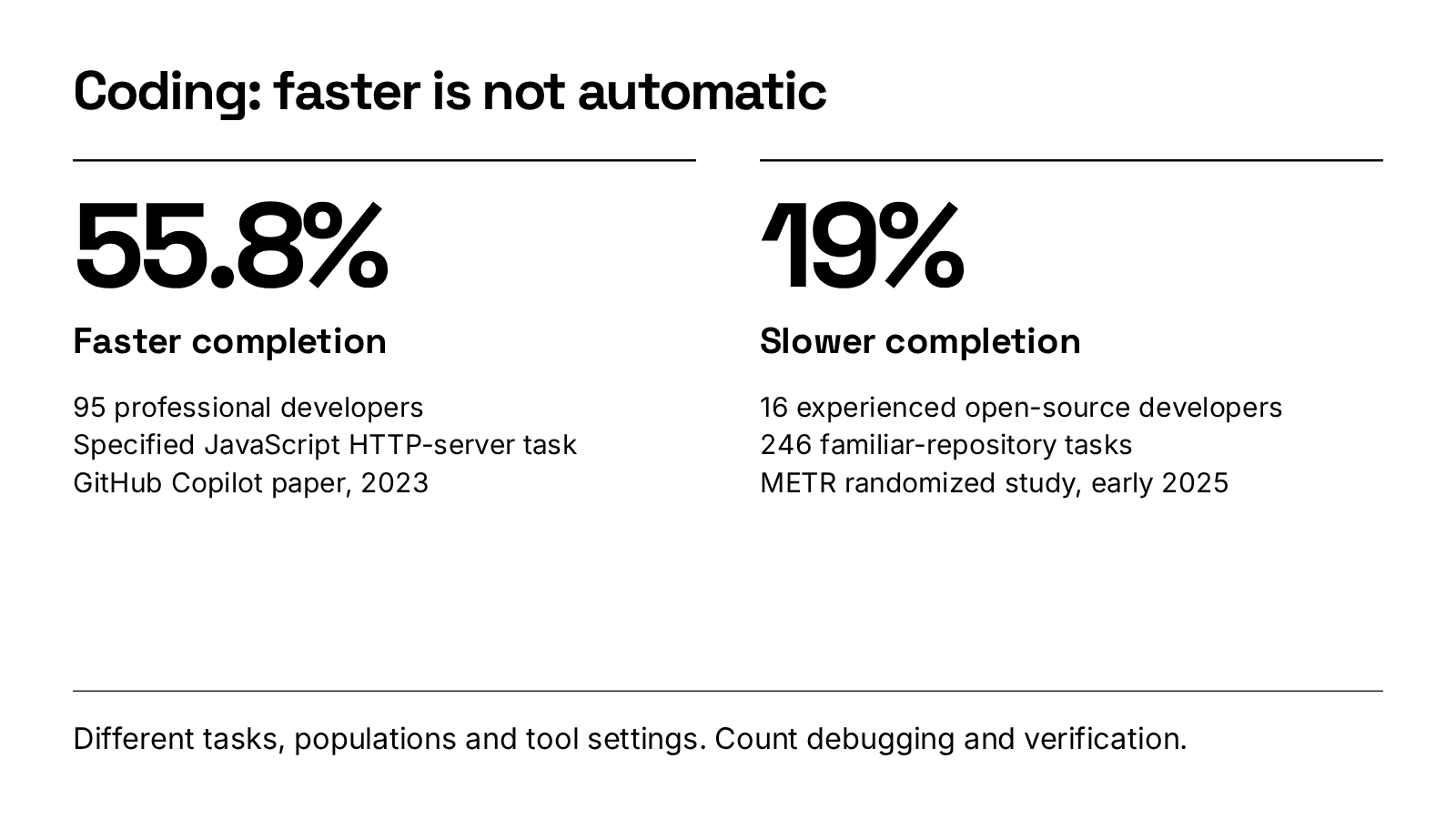
Topic only
No files or links; Syaxis chose the sources.
A briefing on workplace AI, drawing on four studies.
Bring your files or research, or start with just a topic or short prompt. Syaxis researches, writes and designs the complete deck. Refine through chat, then present or export PowerPoint, PDF or PNG.
Create a new deck from your material, then check the exported file in the app where you will present it.
Give Syaxis a topic or short prompt and tell it who the presentation is for. Add source files if you have them. It researches, writes and designs the complete deck.
Create slides with the presentation agentAsk for a shorter slide, a new chart or a different visual style. Review the updated deck and return to an earlier saved version when needed.
Edit and adapt your presentationOpen presenter view and move through the slides with the arrow keys. Write your own speaker notes and show or hide them while presenting.
Present and export to PowerPoint, PDF or PNGExplore four eight-slide presentations created and revised in Syaxis. Each example includes its brief, source material and exports.
Decks and source records are in English.
No files or links; Syaxis chose the sources.
A briefing on workplace AI, drawing on four studies.
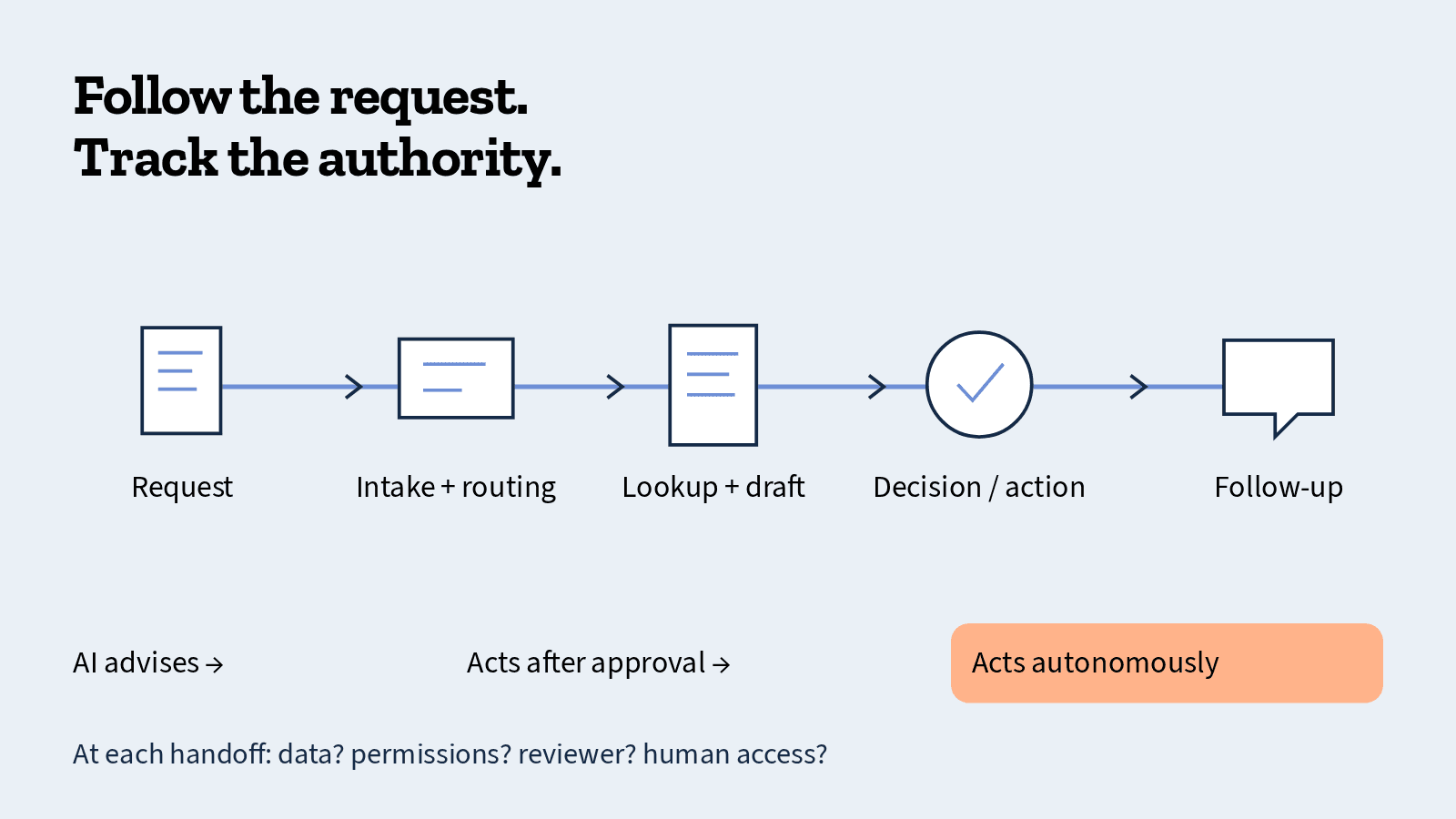
NIST AI Risk Management Framework report.
An illustrated AI-risk field guide for support leaders.
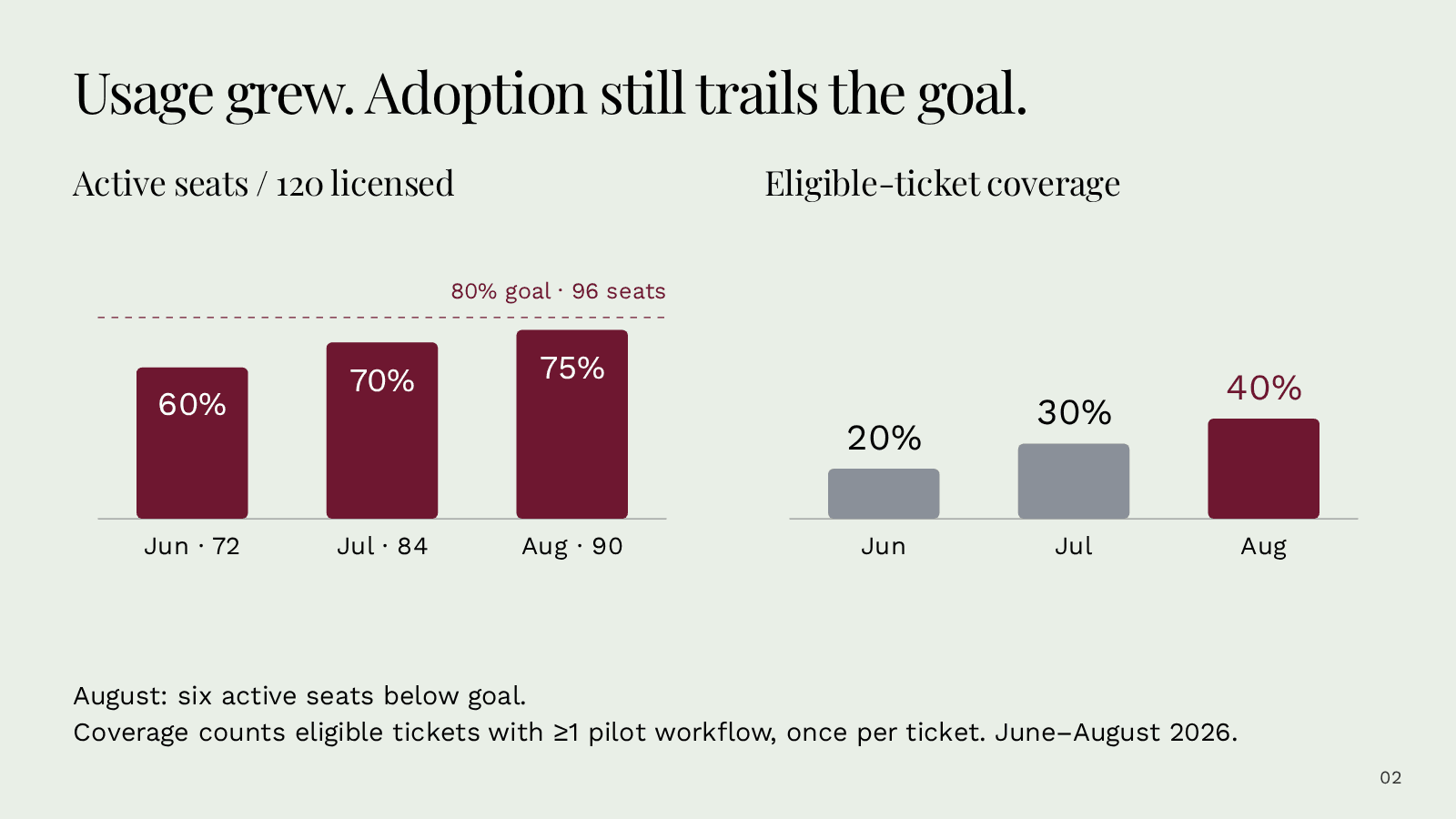
Synthetic Word notes with a dated metric correction.
A renewal review separating adoption, coverage and expansion.
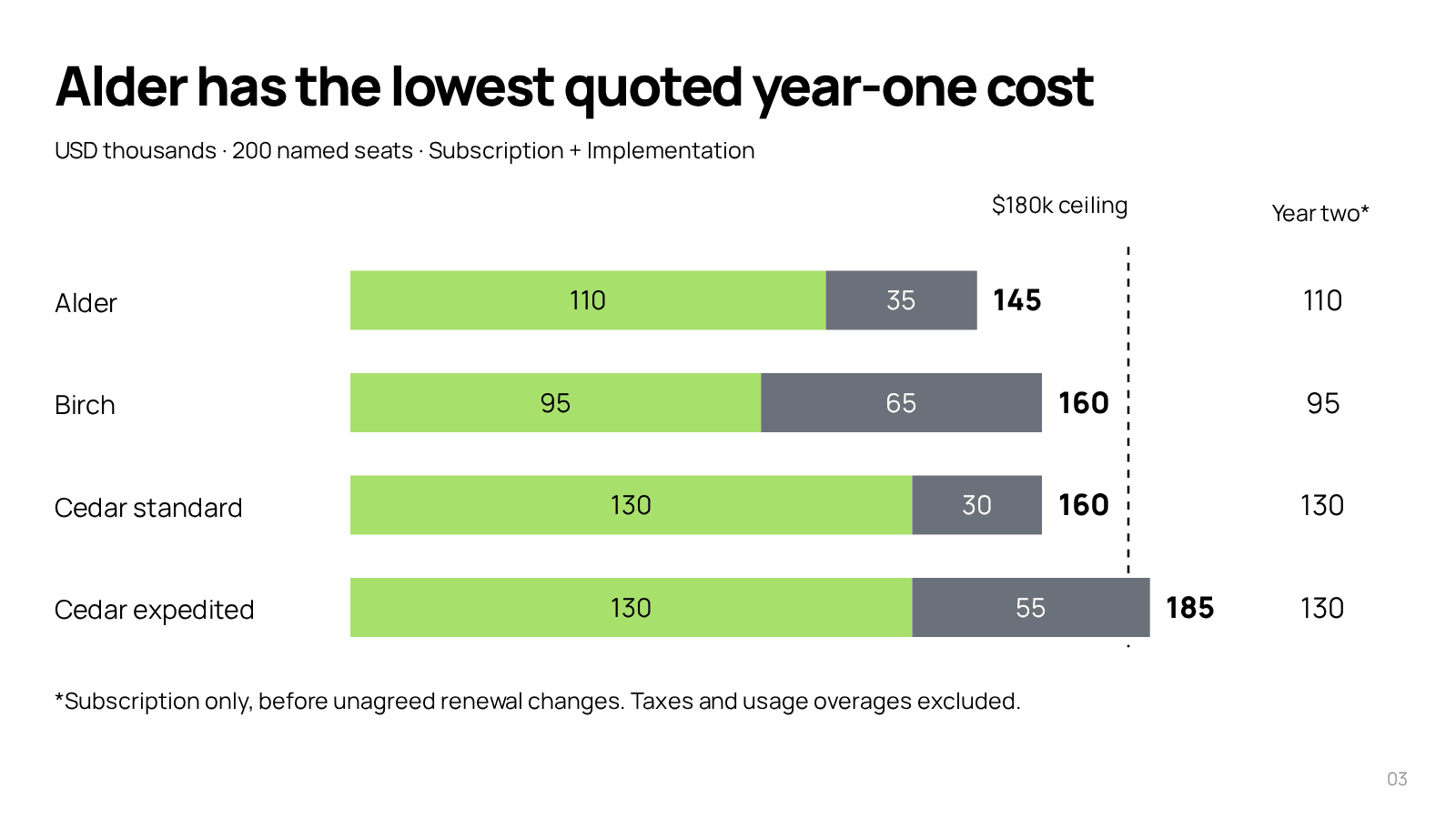
Synthetic procurement requirements and supplier proposals.
A cost comparison and conditional supplier recommendation.
Your presentation lives in Syaxis. Build the deck, ask for changes and open presenter view in the same app, without installing PowerPoint. Export is an option when you need to take the slides elsewhere.
Need help writing the brief and checking the result? Follow the worked presentation tutorial
The Relay launch below is a fictional example. Its source material, conversation and slide illustrations explain the steps; they are not a recording of a generated presentation.
Attach a report or rough notes directly in Presentations, name the audience and explain what the deck should accomplish. Syaxis develops the content and slide design from that material. In the fictional Relay example, customer interviews provide quotes and product notes supply the launch plan.
What customers keep telling us
“Follow the outline in our product notes. Use these customer quotes exactly as written, shorten the feature descriptions and use our screenshots to show how Relay works.”
The agent creates a new presentation using your material. Your original files stay unchanged; an uploaded PowerPoint’s layout is not preserved automatically.
Start with a research question when you do not yet have a source packet. The presentation agent searches and reads sources while developing the complete deck. For Relay, the brief might ask how other project-planning tools handle handoffs. Review the supporting sources before presenting the conclusions.
The agent searches and reads sources while creating the slides. It can build on findings you discussed in Chat or research from your request alone. Include any questions or preferred sources to guide it.
“Create Relay’s launch presentation. Use our interviews and compare our approach with other project-planning tools.”
Ask Chat to search the web, news or academic papers, or read a public link you provide. Open the sources, compare findings and ask follow-up questions while you work out what you want to say.
“Compare how project-planning tools assign owners and track the next task. Include links to the sources.”
Requests made in Chat or directly in Presentations use the same presentation agent. It brings your request, material and research together to create the slides.
Follow progress and read draft text while the agent works. The finished slides have their own wording and layout, as in these examples from Relay’s launch:
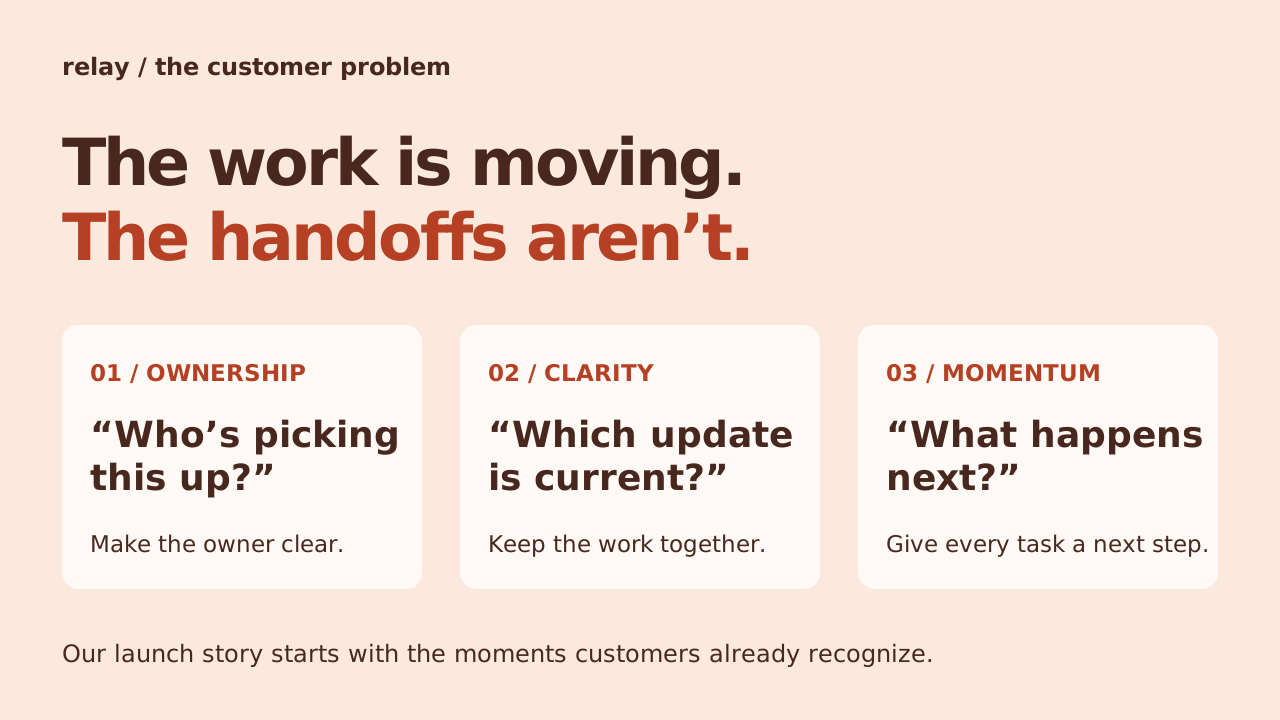
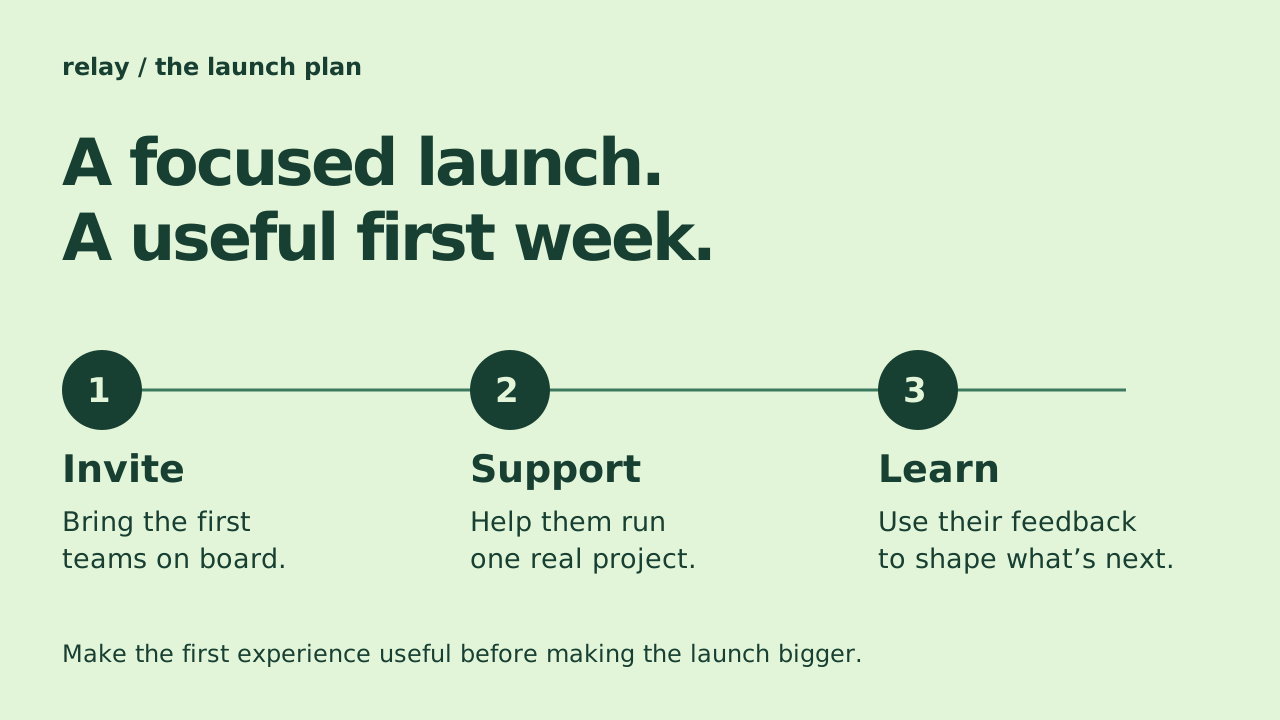
Ask for a chart to compare figures, a table to organize information or a diagram to explain a process. The agent can also find photos and generate illustrations for the slides.
Include preferences such as “use our product screenshots,” “keep each slide brief” or “write in Arabic.” You can choose the language of the slides independently of the website’s language, including right-to-left text.
The launch presentation is ready, but you want to specify how many teams will try Relay first. Open it and use the chat beside the slides to tell the presentation agent what to change. It updates the presentation and saves a new version.
“Change the rollout to start with 10 teams. Help each one run a real project, and review their feedback before opening it up.”
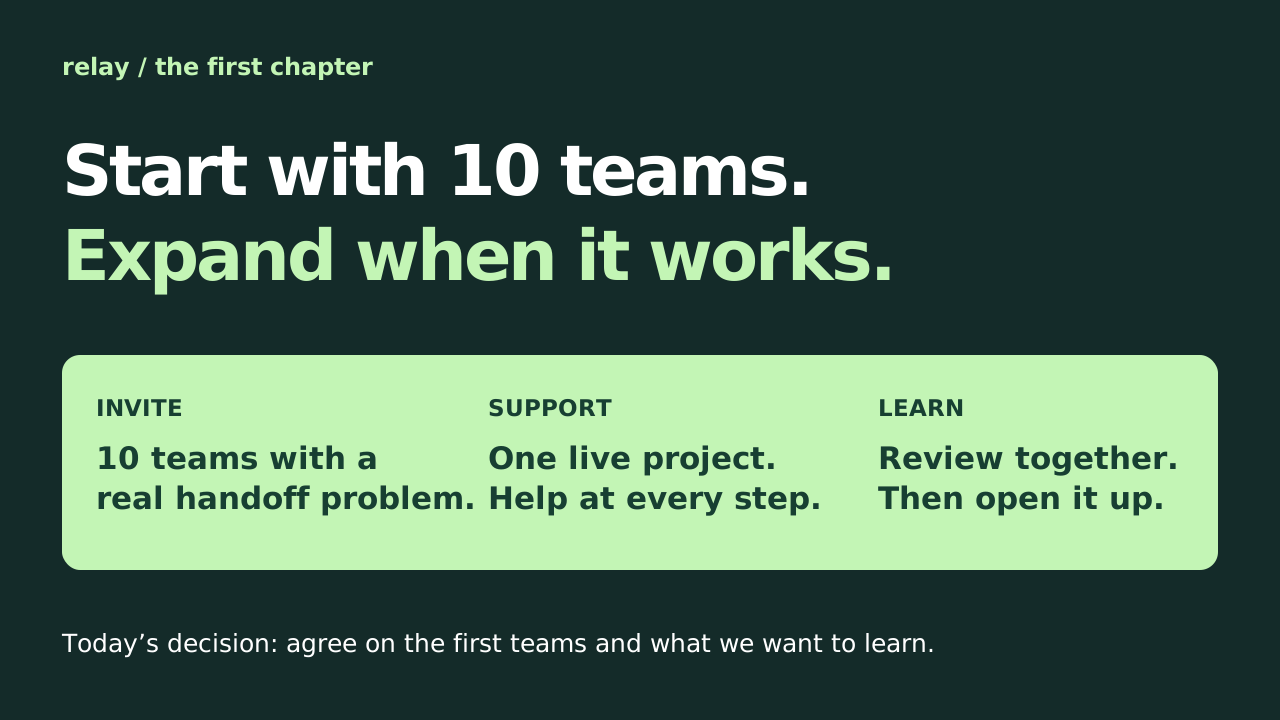
Name the slide you want changed, or ask for a change across the presentation. For example: “shorten slide 3,” “add a comparison table,” “move the launch plan to the end” or “use larger text throughout.” You can also remove slides or replace images.
Write and save your own speaker notes for each slide, then read them in presenter view. These are your reminders, separate from the text the agent writes for the slides. For Relay’s final slide, you might note the decision you need from the team.
Ask the team which customers to invite first. Agree on what we want to learn from their first project before setting a date for the wider launch.
Present in Syaxis, or download the format you need:
The presentation stays in your library, along with your saved Chat conversations. Return to it, rename it or permanently delete work you no longer need.
Free exports include a “Made with Syaxis” mark. Paid exports remove it. Compare plans.
You can also start in Chat when you want to explore the topic first. Discuss your sources and decide what to present, then ask for a presentation. This preparation is optional; you can start directly with a topic or files.
For example, you’re looking through customer interviews for Relay, a project-planning app. A discussion about those interviews helps you choose the focus for a launch presentation:
Here are our customer interviews and product notes. What problems keep coming up?
Several customers describe chasing updates and not knowing who owns the next task. Both come up when work passes from one person to another. Relay’s product notes describe keeping the task, its owner and its next step in one place.
Let’s focus on missed handoffs. Create a launch presentation for our team explaining that problem and how Relay addresses it. Use examples from the interviews and finish with the rollout plan in our notes.
Open it to follow the presentation agent’s progress, then review the finished slides.
Your request starts the presentation agent, with the discussion and attached files as context. The topic, audience and findings you choose give it direction.
Adapt the request to what your audience needs: a decision, an explanation or a plan. These examples give you a starting point.
For an investor meeting, a sales conversation or an internal proposal.
A project review, quarterly update or internal briefing.
A seminar, a literature discussion or an evidence-based recommendation.
A lesson, an onboarding session or a practical workshop.
An interview, a recorded discussion or meeting notes.
A committee, a local group or a personal project.
The presentation is one part of Relay’s launch. Use Chat to prepare supporting material before or after the slides, or for work unrelated to presentations.
Create a launch image, then ask for variations to use in invitations or posts.
Analyze the first teams’ survey responses and make a chart for your next update.
Create a launch handout with the main points and next steps, downloadable as Word or PDF.
Explore how a task moves between people with a diagram or an explanation with adjustable controls.
Check supported files, download formats and controls for both Chat and presentations.
Inputs, editing controls and delivery options for presentations, including those requested from Chat.
Read and compare files, research sources and choose available Chat models on eligible plans. Files can be up to 5 MB each, or 50 MB for audio. The number of uploads available depends on your plan.
Request these outputs in Chat and download the results from the conversation.
No. Create the presentation, request edits through chat and present it in Syaxis in your browser. Download a PPTX if you want to continue in PowerPoint. Exported slide text and shapes are editable, while some graphics remain images. You can also download PDF or PNG files.
Ask the presentation agent for a design-only change and identify the wording, quotes and figures it must keep. Specify which sections, if any, it may shorten or rewrite. These are instructions rather than a content lock, so compare the result with the approved material. You can restore an earlier saved version if needed.
In Chat, open the source links included with an answer. For a presentation, ask for the source names, dates or links you need shown on the slides. Research during creation does not automatically put a citation on every slide. Check important claims against the original sources before presenting.
There is no monthly presentation-count cap. Creation, AI edits and Chat use credits, and you need a minimum credit balance to start a presentation or edit. That starting balance is not a fixed price for the finished presentation; usage determines the charge. Plans also set slide limits and upload allowances. Pricing lists the current amounts.
Your selection controls Chat replies. The presentation agent uses a separate model setup for creating and editing slides, so choosing Claude or GPT in Chat does not choose the model that builds the presentation. Access is through your Syaxis plan; a separate subscription to the model provider’s app is not required or included.
Yes. In the same Chat conversation, ask for a presentation using that image and say where it should appear. Saved images from that conversation are available to the presentation agent, but making an image does not automatically place it on a slide. For a request started elsewhere, download the image and attach it to that request.
Use Continue when offered to resume the same request, reusing completed work. You still need the credit balance required to continue. A newer request or a changed presentation can prevent an earlier edit from resuming; in that case, make a new request against the current slides. Previously saved versions remain available.
Write your request in the box above. You can review it and add files before submitting it to the presentation agent. Or open Chat to work through a question first.