
In this article
To turn a PDF into PowerPoint with AI, first decide whether you need the same pages in a different file format or a new presentation built from the report. For a new deck, attach the PDF, specify the audience and decision, review the resulting slides against the source, then export and inspect the PPTX.
Syaxis supports the presentation-building route: attach the PDF directly to a presentation request and the agent develops the content and designs a complete deck, which you can revise through chat. It is not a promise of pixel-perfect PDF conversion. The NIST example below is an actual generated and revised deck. The separate handoff-report example is fictional and editorially constructed.
What to take away.
Use conversion to recover an existing layout; use AI authoring to explain a report to a new audience.
Keep each number attached to its unit, reporting period, denominator and source location.
Review the exported PowerPoint after revisions, including elements the next editor must change.
A 48-page report becomes an illustrated support briefing
Input: The 48-page NIST AI Risk Management Framework report, attached directly to a presentation request. We selected eight slides covering AI risk basics, support workflows, risk assessment and safeguards in the setup questions.
Exact brief: “Turn this report into a practical introduction to AI risk for support leaders. Use a calm, light visual style with a simple support-workflow illustration.”
Result: An illustrated field guide for support leaders. It follows a support request from intake to action, uses an illustrative refund case to explain authority and risk, and connects safeguards to GOVERN, MAP, MEASURE and MANAGE.
The support scenarios illustrate the voluntary framework. They are not NIST requirements, certification or a compliance guarantee. NIST material is republished courtesy of the National Institute of Standards and Technology, with no endorsement implied.
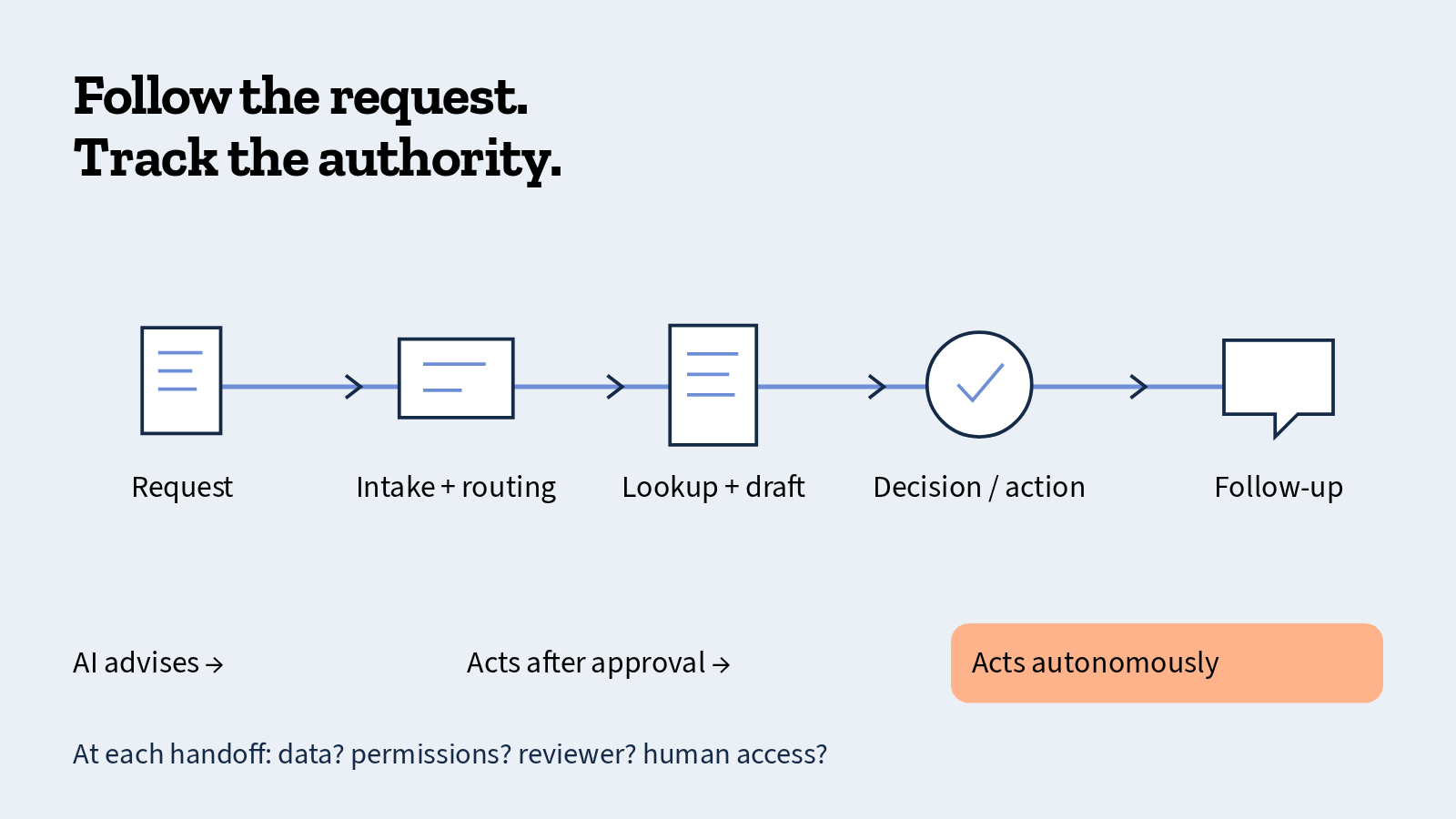
- Download the eight-slide PDF or PowerPoint. The PPTX includes editable text and shapes alongside images; its charts and tables are not native editable objects.
- Turn your report into a presentation, or explore the research-question example to start without a file.
- How this example was made and checked.
Convert the existing PDF pages to a PPTX file
Upload your PDF to Adobe’s converter, then download the converted PPTX.
Open the result in PowerPoint and compare a representative slide with the PDF. Try editing a heading, check a table and inspect the fonts. If the original PPTX is available, use it instead of reconstructing its contents from a PDF.
This route keeps the page-based task. If you want to turn a long report into a shorter presentation with a different argument, use the source-to-slide steps below. Syaxis handles that presentation-creation task; it is not the converter linked above.
PDF conversion or a new presentation?
A PDF of an existing slide deck and a 40-page business report call for different outputs. A page converter may suit the first. For the second, start with the question the audience needs to answer and select the evidence that supports it.
If preserving every position, font and editable object is essential, test a converter on a representative page before committing. Generating a shorter story cannot establish that the original layout has been recovered.
| Starting material | Intended result · What to inspect |
|---|---|
| An existing slide deck saved as PDF | Recover the slide layout · Text boxes, charts and fonts in the converted file |
| A report with findings and recommendations | Build a shorter decision deck · Evidence selection and the meaning of each claim |
| A scanned handout | Extract readable source material first · Names, numbers, reading order and missing text |
Check the source before building slides
Locate the report’s period, question, findings and limitations. Try selecting text in the PDF; if it is a scan, compare any extracted text with the page image. Columns, minus signs, decimal separators and footnotes deserve attention. A successful upload is not evidence that every table was interpreted correctly.
You can attach a report and start with a short brief, as in the NIST example above. For complex or high-stakes evidence, an optional source map can help you review the result: record each fact, its page or table, and any qualification. Include only material you are permitted to upload. If the report contains irrelevant personal or confidential data, prepare a suitable extract rather than relying on a prompt to keep it out of the final slides.
A separate fictional example illustrates how to preserve a denominator and its footnote. Fictional extracted row: “Resolved within target: 18 / 60*”. Footnote: “*60 completed cases; 15 open cases excluded.” The supported statement is “30% of completed cases met the target.” “30% of all cases met the target” changes the denominator. Copy the footnote into the source notes before asking for a chart, and retain it beside the chart or in an immediately visible source note.
| Situation | What to do · Why it matters |
|---|---|
| Two columns interleaved | Compare the extracted text with each page; separate the columns · Incorrect reading order can join unrelated claims |
| Decimal separator changed | Reconcile one numeric row with the original before aggregating · 1,5 and 15 are different values |
| Image-only chart | Read the underlying table if available; otherwise label approximate readings · An image cannot supply missing source data |
When should you prepare an outline from a long PDF?
An outline is useful when you want to approve the argument before generation, but it is optional in Syaxis. You can attach the PDF and ask for a complete presentation directly. If you do prepare an outline, organize it around the audience’s decision rather than copying the report’s table of contents. Keep the report page or table beside each selected finding.
A useful outline request is: “Using this report, propose six slide titles for a decision meeting. For each title, name the supporting passage and one qualification. Put background after the decision; leave out sections that do not affect it.” Draft the outline in Chat if useful, check it against the report, then include your approved outline in the presentation brief.
If the result is still too long, remove repeated context before removing evidence. For an existing deck saved as PDF, decide first whether you want to rebuild its argument or recover its layout; those are different jobs.
Worked example: a handoff report becomes six slides
Use this fictional source excerpt: “During a four-week review, 18 of 60 support handoffs missed the internal response target. Of those 18 late handoffs, 12 lacked a named owner at transfer. The report proposes a two-week pilot requiring an owner field. No pilot has run. The review does not establish why handoffs were late, and it contains no cost or savings estimate.”
The arithmetic supports a 30% late-handoff rate during the review. The 12 cases describe a subset of the late handoffs; they do not prove that adding an owner will prevent delays. A useful deck preserves that distinction and ends with a decision about running the pilot.
| Slide | Main point · Evidence or boundary |
|---|---|
| 1: Decision | Approve a two-week owner-field pilot · A proposal, not a completed improvement |
| 2: Baseline | 18 of 60 handoffs missed the target · Four-week review; 30% of observed handoffs |
| 3: Pattern | 12 late handoffs lacked a named owner · Subset of 18 late cases; association only |
| 4: Options | Keep the process or test the owner field · Neither option has a measured savings figure |
| 5: Pilot | Test the process for two weeks · Name an owner and collect comparable measures |
| 6: Approval | Confirm the pilot owner and review date · Missing assignments remain open questions |
Build a PDF-to-PPT deck in Syaxis
Open the presentation composer in Syaxis, attach your PDF and wait for the upload to finish. Supply a brief that names the audience, purpose and scope. If you are practicing with the excerpt above, paste it as source material instead of claiming to have uploaded a report.
Example brief: “Create six slides for support team leads using the attached handoff report. Ask for approval of a two-week owner-field pilot. Preserve the four-week review period, the 18 of 60 late cases and the 12-case subset. Present the owner issue as an observed pattern, not a proven cause. Separate source findings from pilot proposals. Do not invent savings, a pilot result or an assigned owner.”
The presentation agent writes and designs the slides from the request and source material; it does not stop at an outline. Read the first deck before changing its design. Check whether the six slides answer the approval question and whether every headline remains defensible. Use chat for a specific change, such as placing the options before the pilot plan. The full AI presentation workflow covers briefing and revision in more detail.
Catch the errors that polished slides can hide
In this example, “The owner field cuts delays by 30%” would be unsupported twice: 30% is the observed late rate, and the pilot has not happened. “12 of 60 were late” would also change the source. Inspect the title, chart labels and summary, not only the paragraph where the original figure first appeared.
A useful revision request is: “On the pattern slide, say that 12 of the 18 late handoffs had no named owner. Keep the baseline at 18 of 60 and remove any claim that missing owners caused the delays.” Reopen the other slides afterward to check that the mistaken causal claim has not survived elsewhere.
For your own PDF, retain a source page or table reference alongside each important claim. If a source does not support a claim, remove it or mark it as a proposal. Follow the presentation source-checking guide for a broader review.
Export the PPTX and check editability
Export the reviewed presentation as PowerPoint and open it in the application the recipient will use. Change a heading, inspect a table and check whether a chart is an editable data chart or an image. Those are different deliverables even when they look similar in the preview.
For a multilingual deck, inspect line breaks, decimal separators and right-to-left order where relevant. Keep units and source labels readable. If the output needs further work, revise the saved deck and export again so the delivered file matches the reviewed version.
If you want to try the same source in a general assistant, see the Claude PowerPoint workflow. If the editable source is a document rather than a PDF, use the Word-to-PowerPoint guide.
How this example was made and checked
The initial brief and setup choices are shown above. Follow-up requests improved spacing, developed the field-guide illustrations and changed the cover and closer to images without people. The exact prompts and source notes record the revisions and map the framework concepts to the original NIST report.
All eight slides received source and visual checks, and the PowerPoint export was rendered in LibreOffice and inspected. Interactive Microsoft PowerPoint editing was not tested. This is a selected, reviewed and revised demonstration, not a first-pass accuracy benchmark. The operational recommendations are illustrative applications of the framework.
FAQ
Does PDF to PowerPoint with AI preserve the original layout?
Not necessarily. This workflow builds a new presentation from the PDF’s content. If you need a faithful copy of the original pages, evaluate a conversion tool and check its output separately.
Can a scanned PDF become a presentation?
It can be used as source material when its contents can be read or extracted, but scans require extra checks. Compare key figures and labels with the page image before relying on them in a deck.
Will PDF charts become editable PowerPoint charts?
Do not assume so. Inspect the exported file. A readable image of a chart does not include its editable data series, and reconstructing one requires the underlying values and labels.
What should I do when a scanned PDF is unreadable?
Obtain a clearer scan or the original document. Verify a small extracted passage before processing the rest. If you cannot read the evidence yourself, do not treat an AI transcription as a reliable source for a quantitative slide.
Bring it into your work.
Start with the audience’s decision, keep a source map, and inspect the final file. For a report-focused slide sequence, see the research presentation examples.
How we prepare our guides
Syaxis uses AI to assist with drafting and translation. Comparisons draw on linked sources; they are not hands-on tests unless a test method is described. Worked examples are illustrative unless identified otherwise.


