In this article
Convert PowerPoint to PDF when the reader needs a fixed-page deck, or to PNG when you need individual slide images for another document or channel. Keep the PPTX as the editable source. PDF and PNG serve different jobs and should not replace your only editable copy.
What to take away.
Use PDF for a complete fixed-page presentation.
Use PNG for individual slide images.
Inspect text, links and image size in the actual exported files.
Download a source deck and compare its PDF and PNG files
Use the editable practice deck (PPTX), slides-only PDF and three ordered PNGs (ZIP) with the export checklist (CSV). This is a small fictional practice deck, separate from the eight-slide agency scenario below. It contains three visible slides and a hidden fourth slide, presenter notes, a chart and a link.
The supplied PDF was rendered with LibreOffice; the PNGs were rendered from that PDF at 1600 × 900. They show actual source/output files, not native PowerPoint screenshots or a test of its menus. Use your own PowerPoint platform to export the PPTX, then compare what your files contain. The file and renderer notes describe the sample precisely.
Open the source before exporting. Keep the four-slide PPTX as the editable master. For this slides-only exercise, include the three visible slides and exclude the hidden fourth slide and presenter notes. The PDF and PNG sample set should each contain three pages or images.
How to save PowerPoint as PDF
Windows: File → Export → PDF/XPS → Publish.
Mac: File → Save As → PDF.
Web: File → Export → Download as PDF.
Choose the intended page range and output type where those controls are offered. A slides-only PDF and a handout with several slides per page are different deliverables. Check whether hidden slides or notes should be included rather than accepting a remembered setting.
Open the PDF after saving it. Verify every page, especially dense charts, long headings and mixed-language labels. Test important links in the actual file: platform-specific export behaviour can differ.
Save a PowerPoint PDF with speaker notes
To save PowerPoint as PDF with notes, choose a notes-page output, not the ordinary slide export. In Windows, use File → Print → Notes Pages and a PDF printer. On Mac, use File → Print, select Notes in the PowerPoint layout controls, then save as PDF through the print dialog. For PowerPoint for the web, Microsoft documents File → Print → Print slides with notes, then Save as PDF in the browser.
A notes page pairs the slide with its speaker notes. A handout arranges slide thumbnails and may leave blank writing space; that space is not the stored speaker notes. If the received PDF contains only slide pages, its viewer cannot recover notes that were never included. Ask the author for the PPTX or a notes-page PDF.
Editable source · Slides-only PDF · Notes-page PDF. This original one-slide exercise has one author-written note. The two PDFs were rendered locally with LibreOffice, not exported from native PowerPoint. Compare their visible text, then repeat the export in your own app and inspect the saved file.
Microsoft: PDF with speaker notes · Microsoft: Windows / Mac / Web.
How to export PowerPoint slides as PNG images
In desktop PowerPoint, use the save/export flow and choose PNG as the image format. Depending on the platform, you can select the current slide or export the full presentation as separate images. Microsoft’s format guide describes slide-image export and the available platform options.
PowerPoint for the web’s documented image download option is JPEG, so do not assume that the desktop PNG command exists there. Use a supported desktop workflow when PNG is required.
Check the exported image’s dimensions and readability at its intended display size. Naming files in slide order helps when placing several images into another tool. Keep the final page order with the files so an upload step does not silently rearrange the story.
PDF versus PNG: choose what the recipient needs
A PDF keeps the deck together for reading and distribution. A PNG turns a slide into an image you can place in another document or upload where images are accepted. Neither format preserves the original slide objects as an editable presentation.
Microsoft documents the supported outputs in its PowerPoint file-format reference. The available commands and image formats differ between desktop and web versions.
| Recipient task | Format to consider | Main check |
|---|---|---|
| Edit the deck | PPTX | Editable content and installed fonts |
| Read the complete deck | Page order, legibility and links | |
| Reuse individual slide images | PNG | Pixel dimensions and readable labels |
| See motion or narration | An appropriate video or live presentation workflow | Whether the required media is preserved |
Example: a client deck and three reusable visuals
Imagine a fictional agency sending an eight-slide campaign proposal and three selected charts to a client. Export the complete deck as PDF for reading, then export only the three approved slides as PNG for the client’s internal summary.
The summary may display each image at a much smaller size than a full-screen slide. Inspect the axis labels, legends and source notes at that size. If they become unreadable, simplify the visual or use a larger placement; a file extension change will not fix the design.
Send the PPTX separately if the client is expected to edit it. Explain which file is the source for revisions so corrections are not made to an old screenshot while the original deck remains unchanged.
Review before sharing the converted files
Check that the exported files reflect the final revision, not an earlier open copy. Confirm page order, cropping, mathematical symbols and non-Latin scripts. Remove material that should not travel with the deck before exporting.
If a chart is now an image, preserve its source and editable data elsewhere. A PNG does not carry an accessible text explanation by itself; add an appropriate description when embedding it in a page or document.
For Syaxis decks, open the export menu and choose the format you need, then review the downloaded file. Free-plan exports carry the Made with Syaxis mark. The source-verification guide helps check the content before preparing the final copies.
If you created the deck in Syaxis, use its export menu to download PowerPoint, PDF or PNG directly. PNG export downloads a ZIP containing the slide images. The Microsoft PowerPoint instructions below are useful when you already have an external PPTX or want to use PowerPoint’s own conversion controls.
Check what survives the export
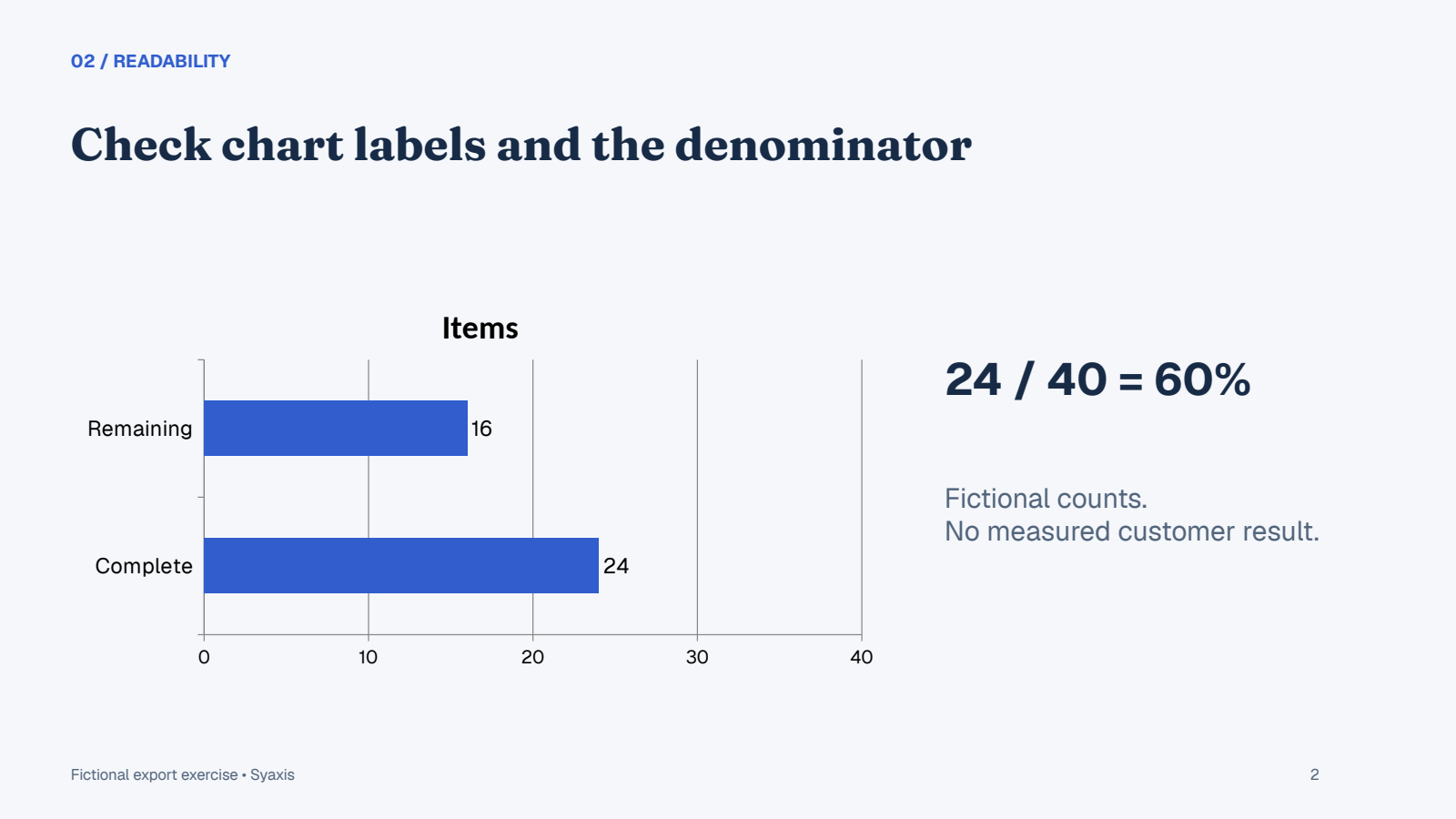
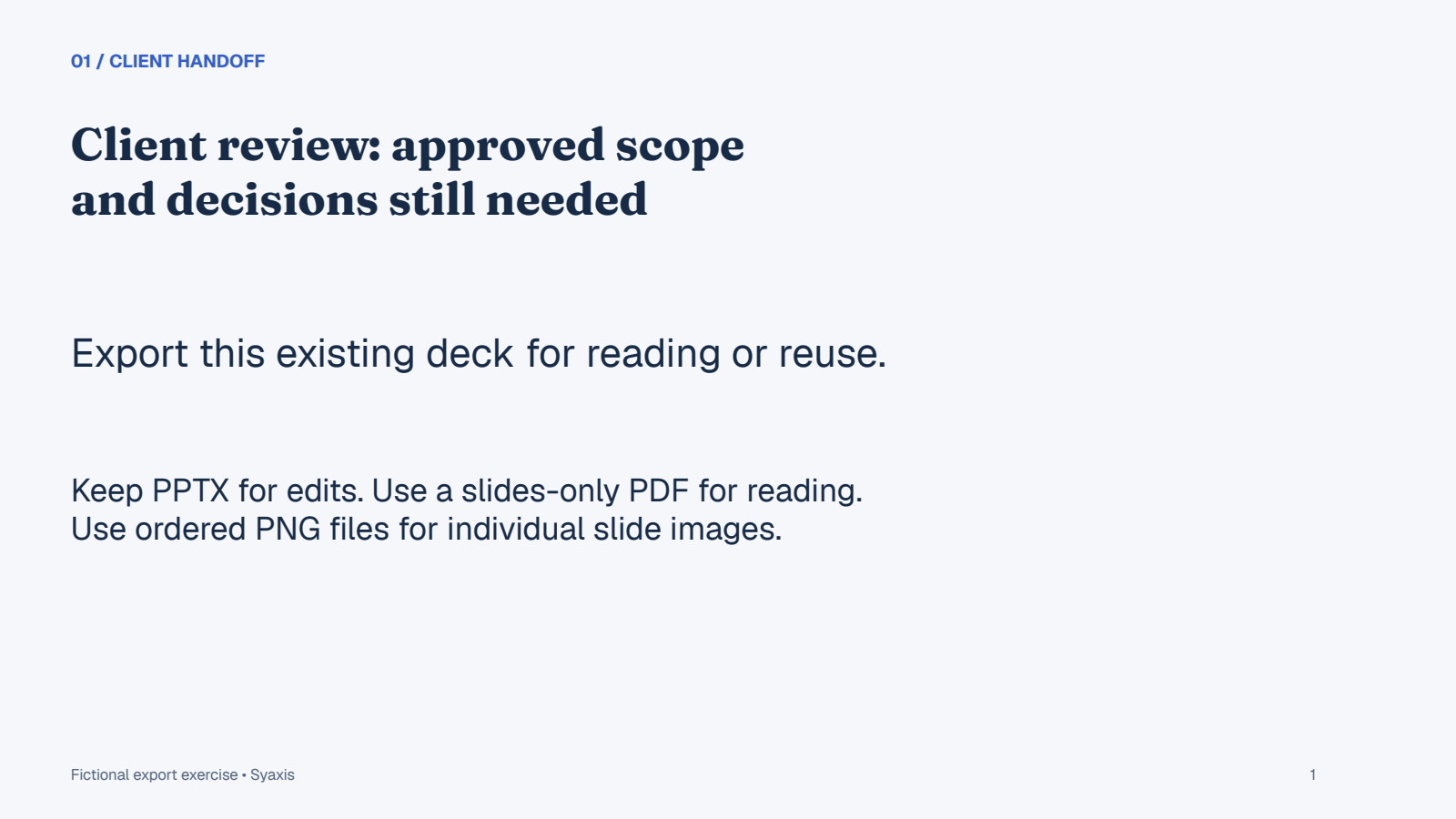
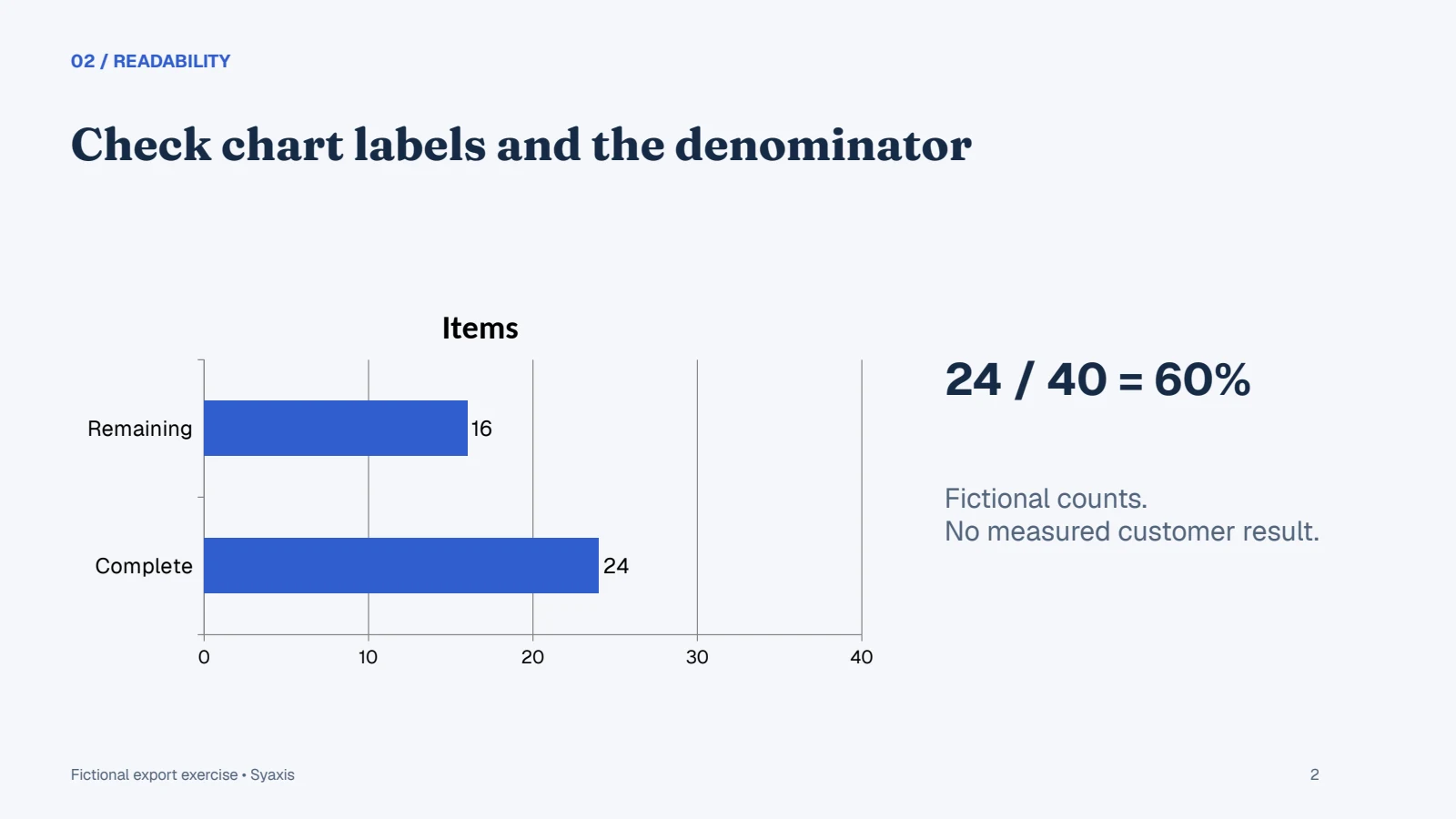
Compare the chart slide with its full-size PNG. The labels should still say Complete 24 and Remaining 16, with a total of 40 and a completion figure of 60%. Inspect the long heading on slide 1 at the size the recipient will use, not only at full-screen zoom.
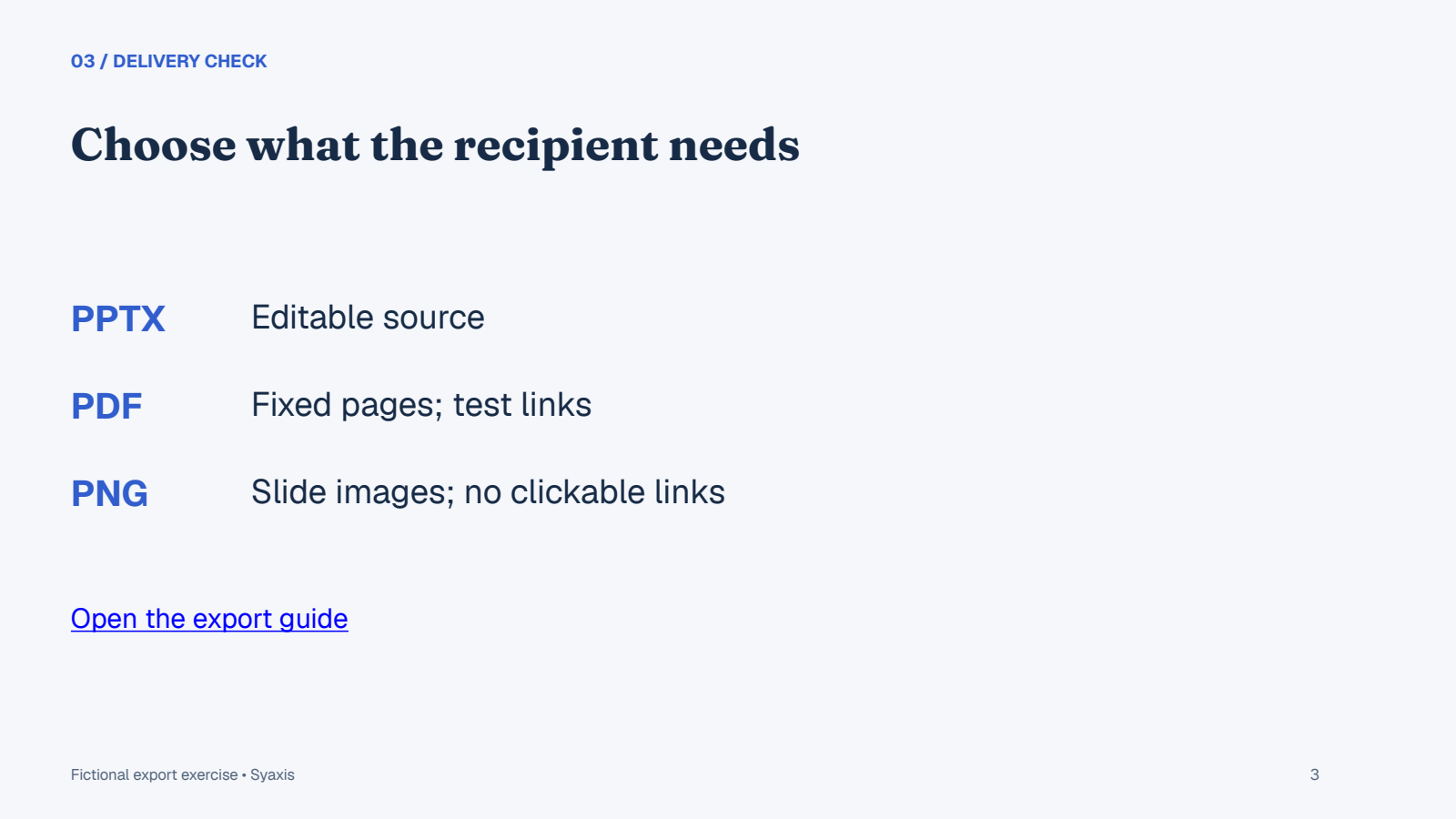
The link on slide 3 remains a link in the supplied PDF. A PNG is a picture, so it has no clickable link or editable chart data. When you export in your own app, check the resulting file rather than assuming the same behavior. Use PNG 1, PNG 2 and PNG 3 to compare image order.
If the PDF has four pages, check whether you included the hidden slide. If notes appear, check whether you exported notes pages rather than slides. If chart labels or fonts change, fix or replace them in the PPTX and export again. For a real delivery, remove material that must not be shared before exporting; hiding it is not removal from the source file.
| Property | PPTX source | PDF / PNG sample |
|---|---|---|
| Slides | Four, with slide 4 hidden | Three visible slides only |
| Presenter notes | Fictional notes in source | Not included |
| Chart | Editable 24 and 16 values | Rendered chart; keep the source for changes |
| Link | On slide 3 | PDF link preserved; PNG has no clickable link |
| Image size | 16:9 deck | Each PNG is 1600 × 900 |
FAQ
Can I export an entire PowerPoint presentation as PNG?
Desktop PowerPoint supports saving slides as separate image files. Follow the instructions for your platform and choose the full presentation when that option is offered.
Can Syaxis export PDF and PNG directly?
Yes. Open the presentation’s export menu and choose PowerPoint, PDF or PNG. PNG export provides a ZIP of slide images. You do not need Microsoft PowerPoint to export an existing Syaxis deck in these formats; the PowerPoint conversion instructions here cover a separate workflow.
Will animations survive PDF or PNG conversion?
Do not expect a static page or image to preserve a presentation’s motion. Choose an appropriate video or live presentation workflow when motion is essential.
Why can a slide image look blurry even when the presentation looks sharp?
The image has a fixed pixel size, while text in an editable deck may scale differently. Inspect the exported dimensions and avoid displaying it substantially larger than its usable resolution. Re-export at an appropriate size when your software supports it.
Bring it into your work.
If you are also choosing where to create the deck, Syaxis vs PowerPoint distinguishes AI drafting from the recipient’s editing requirements.
For the related workflow and its specific requirements, see How to Make a Presentation with AI: Notes to PowerPoint.
How we prepare our guides
Syaxis uses AI to assist with drafting and translation. Comparisons draw on linked sources; they are not hands-on tests unless a test method is described. Worked examples are illustrative unless identified otherwise.