PowerPoint is both a slide-editing application and a familiar delivery format. Syaxis is an AI workspace that creates a researched presentation from a brief and exports an editable PowerPoint file. You can therefore use Syaxis to create a deck and PowerPoint to finish it; with eligible Copilot access, PowerPoint also supports AI creation and conversational revisions.
In Syaxis, a simple brief can start presentation creation directly; research and content preparation happen within that workflow. Chat is optional preparation when you want to examine sources and shape the material yourself.
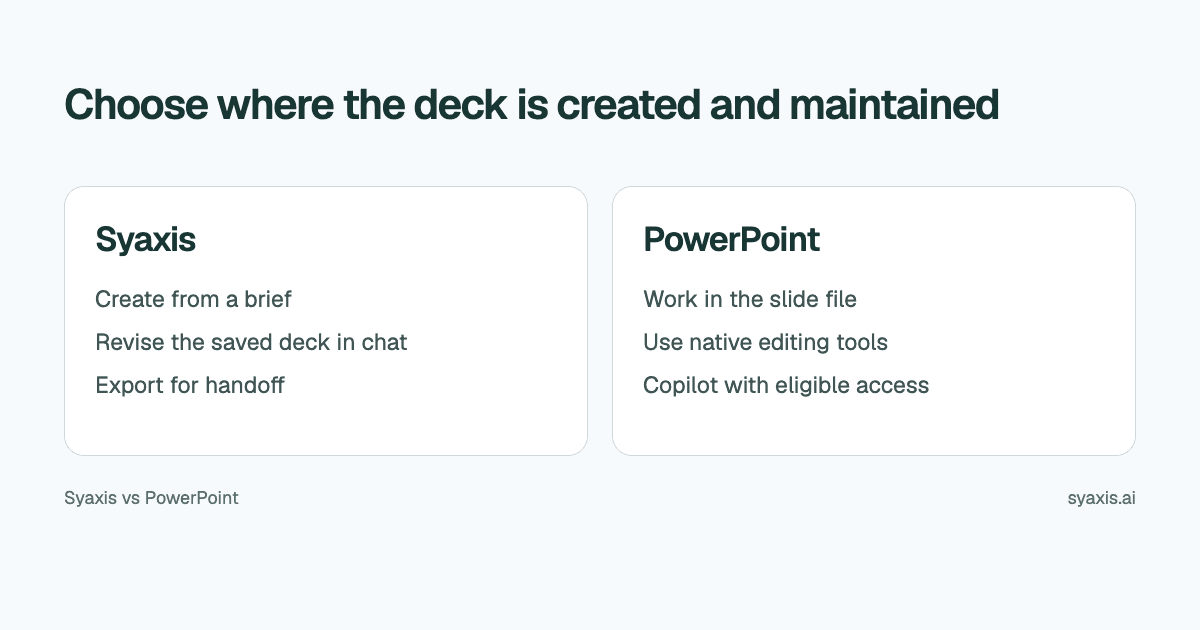
Choose Syaxis when research, image exploration and presentation creation are recurring parts of your AI work. Choose PowerPoint as the main workspace when the deck must use an existing corporate template or colleagues need its native editing controls. You can also create in Syaxis and hand off a PPTX to PowerPoint; the two products can serve successive stages.
Written by Syaxis from product documentation reviewed on October 9, 2026.
One Syaxis subscription covers everyday AI Chat, research, images and presentations, within plan allowances.
A presentation can start in Syaxis and be delivered as PowerPoint; the tools need not be mutually exclusive.
Editable text, editable chart data and a fixed PDF are different delivery requirements.
Compare the authoring environment and the final file
Microsoft documents presentation creation with Copilot, including eligibility conditions. This table distinguishes the environment from the individual AI features enabled in it.
| Requirement | Syaxis | Microsoft PowerPoint |
|---|---|---|
| Starting point | A simple brief is enough; optionally add notes or files, or curate the content in Chat first | An existing deck, template or new presentation |
| AI creation | Brief → built-in research and content preparation → slides | Copilot creates from prompts and source files, with outline refinement where enabled |
| Revisions | Revise the saved deck through conversation and edit slide text directly | Native slide editing; conversational Copilot changes where enabled |
| Working copy after creation | Saved Syaxis deck; exported PPTX is a separate editable copy | PowerPoint file remains the editable working copy |
| Other work | Presentations, everyday Chat, research, image generation and editing | Other Microsoft 365 and Copilot tools depend on the subscriptions held |
| Important fit question | Do you want a separate AI presentation workspace? | Must creation stay inside an existing PowerPoint process? |
First establish which PowerPoint experience you have
Microsoft’s Copilot creation guide includes conversational outline refinement and continued slide editing. Account, app and organization eligibility apply. Chat-based revision therefore cannot by itself distinguish Syaxis from PowerPoint with Copilot.
Microsoft's instructions describe creating presentations from a prompt or referenced file. They also recommend starting with an organization's template when the resulting deck needs its theme and layouts. That matters when a firm already has approved slide masters and a review process built around them.
Syaxis provides its own presentation workspace. It does not turn a Syaxis subscription into a Microsoft 365 or Copilot license. If your recipient requires editing in a desktop version of PowerPoint, they still need access to their chosen software.
Turn a document into a presentation, not a sequence of document pages
An AI PowerPoint generator is most useful when the source is substantial but the audience needs a short decision. Imagine a project manager with a status report, an issue log and a request to change the delivery date. Copying one report heading onto each slide would reproduce the document rather than explain the decision.
A better illustrative brief is: ‘Create a six-slide steering committee update. Open with the date decision, show the causes supported by the issue log, distinguish resolved issues from remaining risks, and finish with the two options. Use the approved dates in the attached report. Do not invent an estimate for missing costs.’
Syaxis can take that brief and source material into its creation workflow, with built-in research available during the build. Review outside information against the project evidence before presenting it. If the task is primarily conversion, our Word-to-PowerPoint guide explains how to prepare the document's structure.
Define what the recipient must be able to edit
A .pptx extension tells you the file format, not the editing behavior of every element. The recipient may need to change one sentence, update the numbers behind a chart, or apply a corporate master. Write those requirements down before selecting the authoring tool.
Syaxis exports PPTX, PDF and a ZIP of PNG slide images. Its PowerPoint export supports native text and other slide objects where the generated content uses them; image-based visuals remain images. Use PPTX for further editing and PDF or PNG for fixed copies.
| Recipient’s task | What matters |
|---|---|
| Change a headline | Editable text rather than a flattened image |
| Update a chart next quarter | Access to its underlying data, not only its appearance |
| Apply a mandated layout | Compatibility with the required PowerPoint template |
| Distribute a final reading copy | Correct page order, legible footnotes and a stable PDF |
| Use slides as images | Resolution and aspect ratio appropriate for the destination |
Separate a change in the argument from a wording correction
Syaxis offers direct text corrections in the deck and chat requests for broader changes. PowerPoint is the relevant environment when your work depends on its native object editing and template controls. Treat those as separate needs: rewriting the recommendation and manipulating a specific slide object.
For the project update, a useful revision says: ‘Replace the technical root-cause detail with its delivery impact, but preserve the two options and their assumptions.’ That identifies what should change and what must survive. Inspect the revised deck for the distinction between an approved date and a proposed date.
If a team will continue editing the exported PowerPoint, agree which copy is authoritative. Changes made in a downloaded file should not be assumed to synchronize back into Syaxis. A clear handoff prevents the presenter from using an older version while the project owner edits another.
Optional: investigate the project yourself in Chat
If you want to shape the content yourself before generation, Chat provides an optional preparation step. For the steering committee update, you may need to read an issue log before deciding what the deck should say. In Syaxis Chat, ask about the uploaded report, research external dependencies on the web, or develop a conceptual image explaining a bottleneck. Research and image requests work without creating a presentation.
Once the date decision and approved evidence are clear, ask Chat to create the update from that context. Open the generated presentation to change the slide sequence or wording through its chat controls. Export PPTX when a colleague needs to continue in PowerPoint. That export is a handoff; later PowerPoint edits do not synchronize back to Syaxis.
This is a reason to choose Syaxis if you need the surrounding AI work as well as slides. If your entire task is updating a company master and editing existing slide objects, PowerPoint’s native environment remains directly suited to that job.
Count everyday Chat, research and images in the subscription
A Syaxis subscription covers everyday AI chat as well as presentations, research and image generation or editing. You might use Chat to draft a project email, understand a technical issue or plan your week without creating slides at all. If that mix meets your needs, a separate paid AI chatbot, image tool or research service is not required for those tasks in Syaxis.
If your organization already supplies PowerPoint, continuing to use that entitlement may add no software cost. Future subscription renewals and any additional Copilot entitlement still matter. Use Microsoft’s plan information for the account you actually have.
Syaxis combines presentation creation with Chat and image generation in Chat. Its plans have credits and presentation allowances; Free exports are branded, and model choice in Chat starts at Basic. The additional subscription makes sense only if that combination improves work you actually do.
For a single one-off deck, another paid tool may not be necessary. For recurring source-heavy work, evaluate the full sequence from gathering approved inputs to making revisions and handing over the file. A low entry price is not automatically a low total cost.
When Syaxis or PowerPoint is the better fit
Choose Syaxis when you want to develop a deck from a brief and sources, use research during creation, and revise the presentation through chat. It can also be a drafting environment before a PowerPoint handoff.
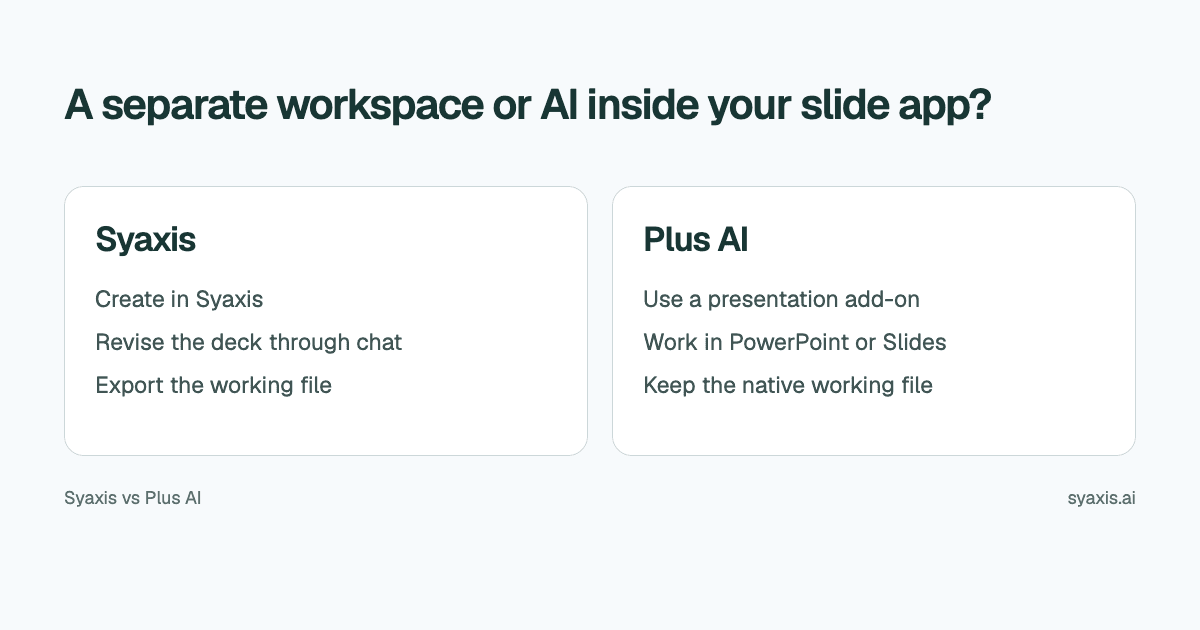
Choose PowerPoint as the main workspace when your process depends on an existing template, native editing requirements or a team already working in that file. If Copilot is available, evaluate that actual experience before comparing another AI tool. Our Syaxis vs Plus AI comparison covers adding AI inside the existing slide environment.
FAQ
Does Syaxis replace Microsoft PowerPoint?
It can be your presentation creation workspace, but you can also export a deck and continue in PowerPoint. It does not replace every Microsoft feature or supply a PowerPoint license.
Does Syaxis export editable PowerPoint files?
Yes. PPTX export includes editable text and supported slide objects. Visuals represented as images remain images, so a chart’s appearance does not guarantee a native data table. Check the specific elements your recipient needs to update.
Can PowerPoint create presentations with AI?
Microsoft documents Copilot presentation creation from prompts and source files. Access depends on the account, licensing, app and organization settings. Compare the version you can actually use.
Choose Syaxis to develop a researched deck directly from a brief, then revise it before export. Investigating the brief yourself in Chat is an optional preparation step. Choose PowerPoint for work that must stay in its template and native editing environment. If both are involved, decide when the PPTX becomes the working copy and who owns the next edit.
How we prepare our guides
Syaxis uses AI to assist with drafting and translation. Comparisons draw on linked sources; they are not hands-on tests unless a test method is described. Worked examples are illustrative unless identified otherwise.
Create a presentation
Turn your source material into a presentation, then refine the deck through chat.